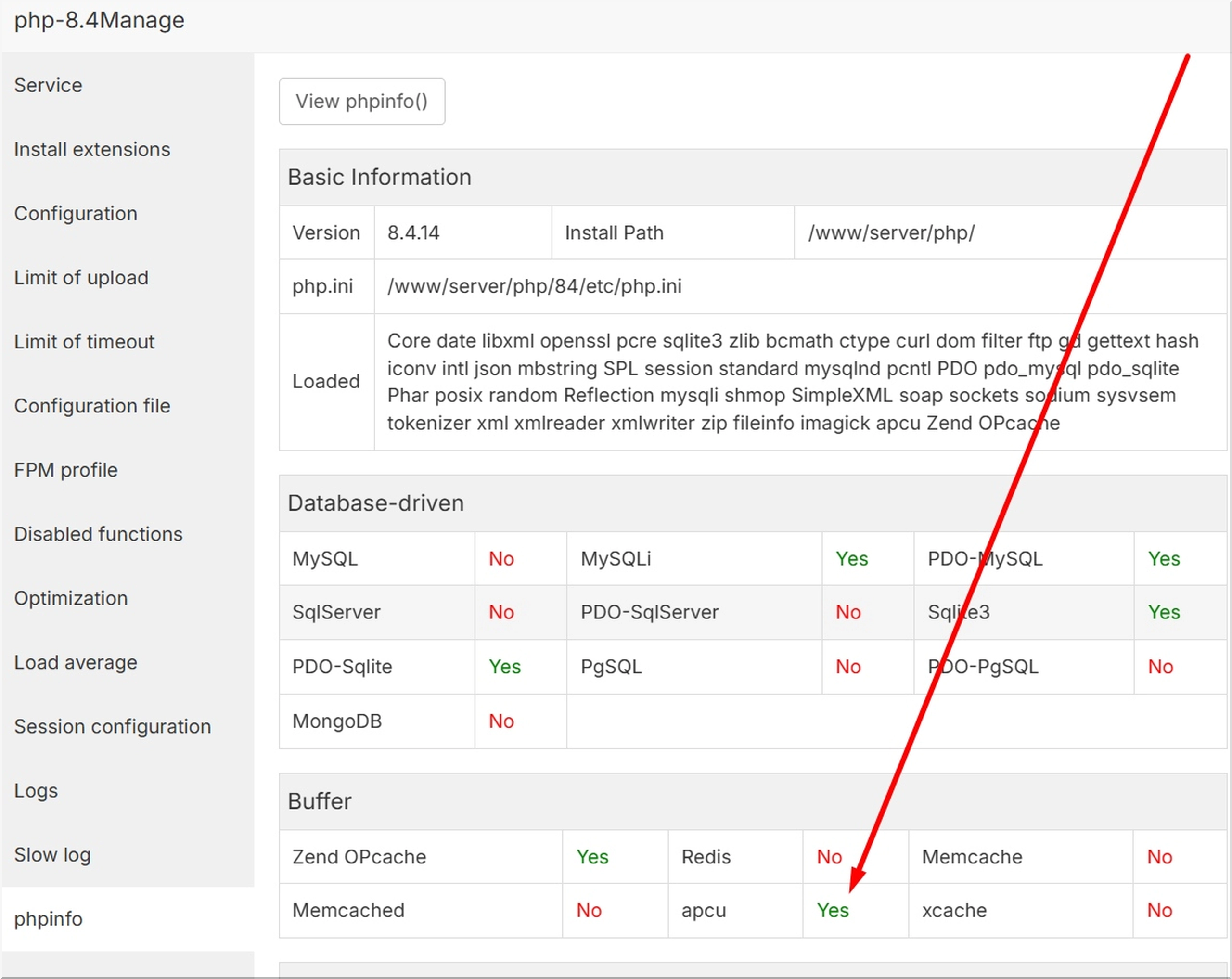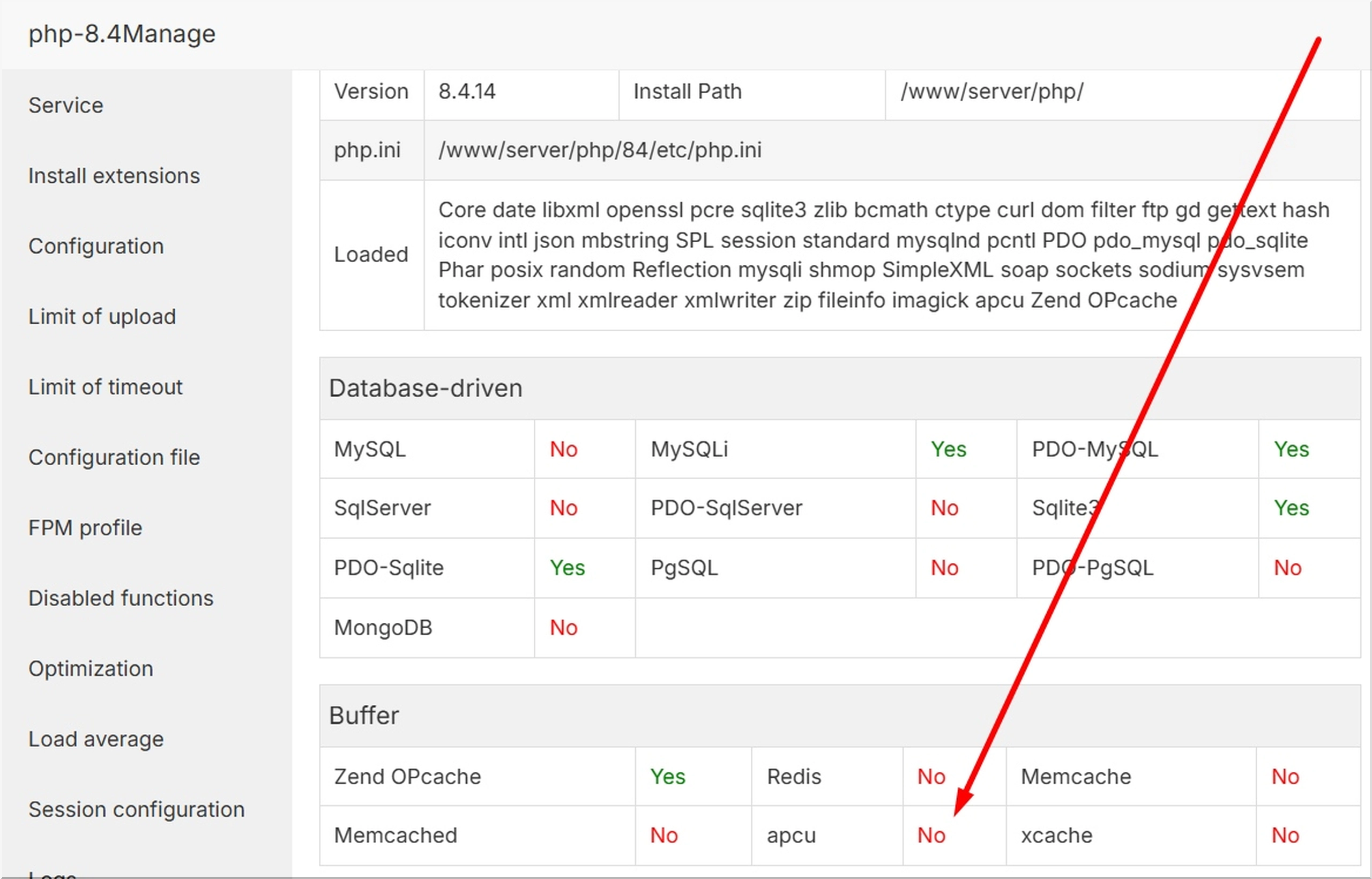
🚀 Turbocharge PHP 8.4 on aaPanel: Manually Installing APCu (Ubuntu 22.04)
A step-by-step guide to compiling and installing the APCu extension from source, a necessary step for boosting performance on newer aaPanel installations with PHP 8.4.
Are you looking to boost the performance of your PHP 8.4 applications running on aaPanel? The Alternative PHP Cache (APCu) is a powerful opcode and data caching system that can provide a significant speedup.
Since PHP 8.4 is relatively new and you're running on Ubuntu 22.04, the extension might not be immediately available through aaPanel's built-in extension list. This guide walks you through the manual compilation and installation process using the command line (SSH).
Prerequisites: What You'll Need 🛠️
Before starting, ensure you have:
- SSH Access to your Ubuntu 22.04 server.
- Root or
sudoprivileges for installing system packages. - The correct PHP 8.4 directory path (typically
/www/server/php/84/in aaPanel).
Step 1: Install Compiler Tools and Dependencies
To compile any PHP extension from source, you need the necessary development tools (gcc, make, etc.).
Run the following commands in your SSH terminal:
# Update your package list
sudo apt update

# Install general build tools
sudo apt install -y gcc g++ make autoconf libc-dev pkg-config
Step 2: Download and Compile APCu 5.1.27
We will download the latest stable APCu source from PECL (version 5.1.27) and compile it specifically against your aaPanel PHP 8.4 installation.
a. Navigate to a temporary directory
cd /tmpb. Download and Extract APCu 5.1.27
wget https://pecl.php.net/get/apcu-5.1.27.tgz
tar -xzf apcu-5.1.27.tgz
cd apcu-5.1.27
c. Prepare for Compilation (phpize)
You must use the phpize binary from your PHP 8.4 installation, not the system's default one.
/www/server/php/84/bin/phpized. Configure, Compile, and Install
The configuration command links the compilation process to PHP 8.4's settings. The final make install creates the apcu.so file.
./configure --with-php-config=/www/server/php/84/bin/php-config
make

# Install the compiled shared library (.so file)
make install
🔥 Crucial: Make a note of the path displayed in the output of the make install command (e.g., /www/server/php/84/lib/php/extensions/no-debug-non-zts-20240924/apcu.so). You will need this exact path in the next step.
Step 3: Enable APCu in PHP 8.4 Configuration
We now create a configuration file (apcu.ini) to tell PHP 8.4 to load the newly compiled extension.
- Define the Path Ensure you replace the
EXTENSION_PATHin the command below with the exact path you obtained from themake installoutput.
CONFIG_DIR="/www/server/php/84/etc/php.d"
# ADJUST THIS PATH TO MATCH YOUR 'make install' OUTPUT
EXTENSION_PATH="/www/server/php/84/lib/php/extensions/no-debug-non-zts-20240924/apcu.so"

# Create the configuration file (apcu.ini)
echo "extension = ${EXTENSION_PATH}" | sudo tee ${CONFIG_DIR}/apcu.ini
echo "apc.enabled = 1" | sudo tee -a ${CONFIG_DIR}/apcu.ini
echo "apc.shm_size = 128M" | sudo tee -a ${CONFIG_DIR}/apcu.ini
echo "apc.enable_cli = 1" | sudo tee -a ${CONFIG_DIR}/apcu.ini
Step 4: Restart PHP-FPM and Verify Installation 🧐
The extension will only take effect once the PHP FastCGI Process Manager (PHP-FPM) for PHP 8.4 is restarted.
a. Restart PHP 8.4-FPM:
/etc/init.d/php-fpm-84 restart(Alternatively, you can click Restart next to PHP-8.4 in the aaPanel App Store.)
b. Verify the Installation:
Check that APCu is successfully loaded using the command line:
/www/server/php/84/bin/php -m | grep apcuIf successful, the command will output apcu. You can also verify by checking the PHP Info page for PHP 8.4 in your aaPanel web interface!